Everything is Installed and Connected, So Why Can’t CADI Detect the DentiMax Sensor?
Blog post description.
TROUBLESHOOTINGSENSORTRENDMICRO
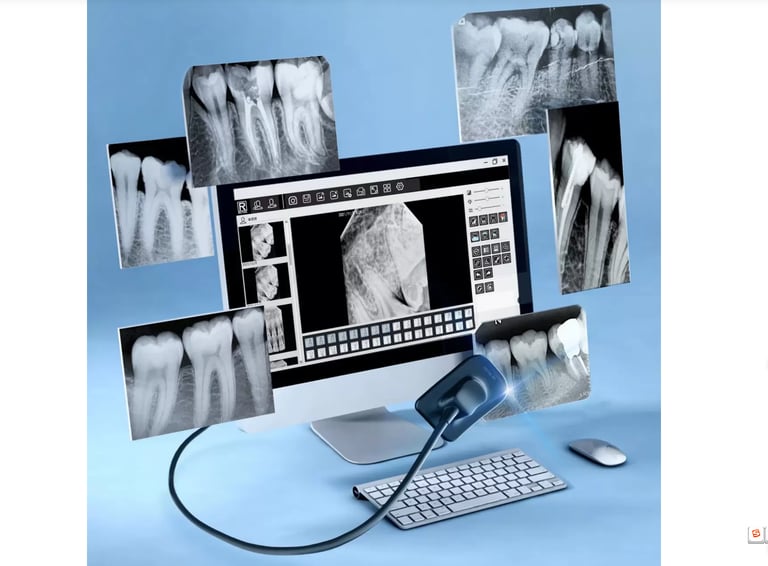
In the day-to-day operations of a dental clinic, ensuring your imaging software plays nice with your hardware is essential. Today, I’m sharing a technical walkthrough regarding the installation and troubleshooting of DentiMax sensors within the CADI imaging software environment. To give you a quick idea: DentiMax is a popular digital X-ray sensor, while CADI is the imaging platform used to capture and manage those patient X-rays.
The Issue
During a recent setup, the goal was to install and verify several sensors, including DentiMax, Kavo (Dexis), and Gendex models. The primary roadblock was that CADI was unable to detect the DentiMax sensors, making it impossible to take X-rays.
What I Did
To get the DentiMax sensors up and running, I followed a structured installation and verification process:
Driver Installation: I installed the MDX3 Optimum drivers from the local server repository.
System Environment: I installed the 2010 Visual C++ redistributable packages to ensure all software dependencies were met.
Hardware Verification: I checked the Windows Device Manager to confirm that the sensor was physically connected and recognized by the PC.
Software Detection: Within the CADI X-Ray MDX settings, I used the "Get Devices" tool to search for the sensor and checked the "Status" for any hidden errors. The CADI imaging software is able to detect the sensor.
Note on Compatibility: It is important to highlight that in order to use the DentiMax sensor effectively within CADI, the system requires the underlying architecture of Kavo and Gendex components. Because of this dependency, I also installed the necessary GxPicture components (covering GXS-700 and IXS sensors) and verified that the GXS-700 correction files were present in the system directory to ensure full bridge compatibility.
The Solutions
To fix the detection failure and prevent future interference, I implemented the following:
Daemon File Placement: I manually placed the ilGxPictureDaemon file into the C:\\CADI folder to enable proper sensor communication.
Antivirus Optimization: I configured Trend Micro scan exclusions for several critical dental software directories to ensure the antivirus wouldn't block sensor data. These folders included C:\CADI .
Root Cause
Why was the system failing? It came down to two main factors:
Missing Component: The ilGxPictureDaemon file was missing from the CADI folder, which prevented the software from "finding" the DentiMax hardware.
Software Interference: Trend Micro was actively scanning the dental software directories, which can often interfere with the sensitive handshaking process between the sensor and the computer.
By addressing the missing files and clearing the path through the antivirus, the sensors are now working perfectly. If your clinic is running into similar "sensor not found" errors, checking your daemon files and exclusion lists is a great place to start!